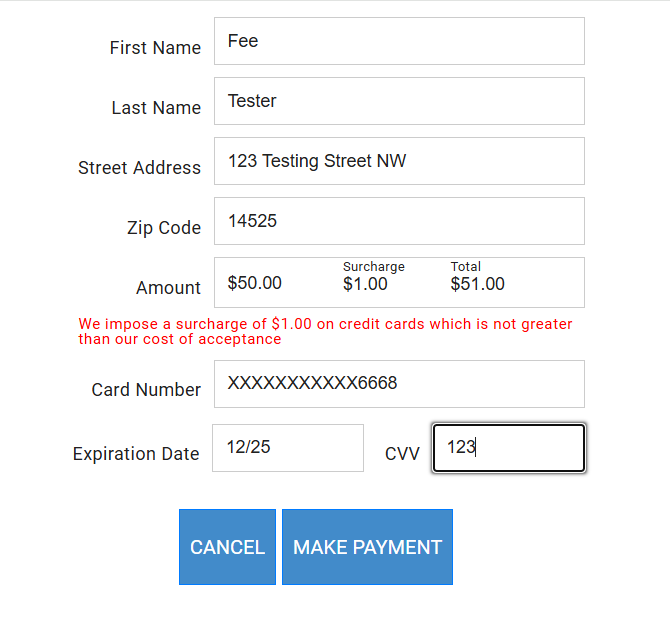
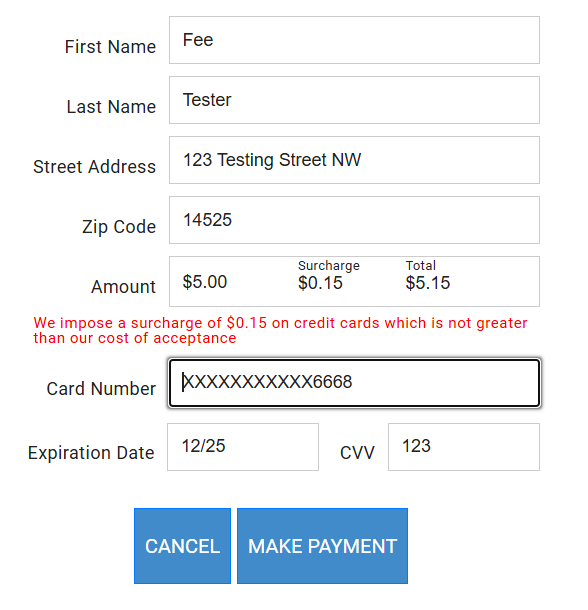
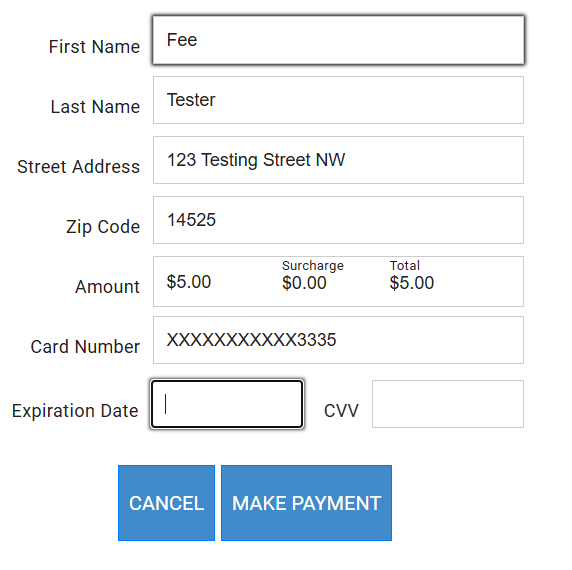
Surcharges and convenience fees are integrated into multiple Easy Pay platforms for a coherent approach to fee processing. The first step is to configure the merchant fee settings using the client admin portal.
¶ Configure Your Merchant Accounts to use the Surcharge Feature
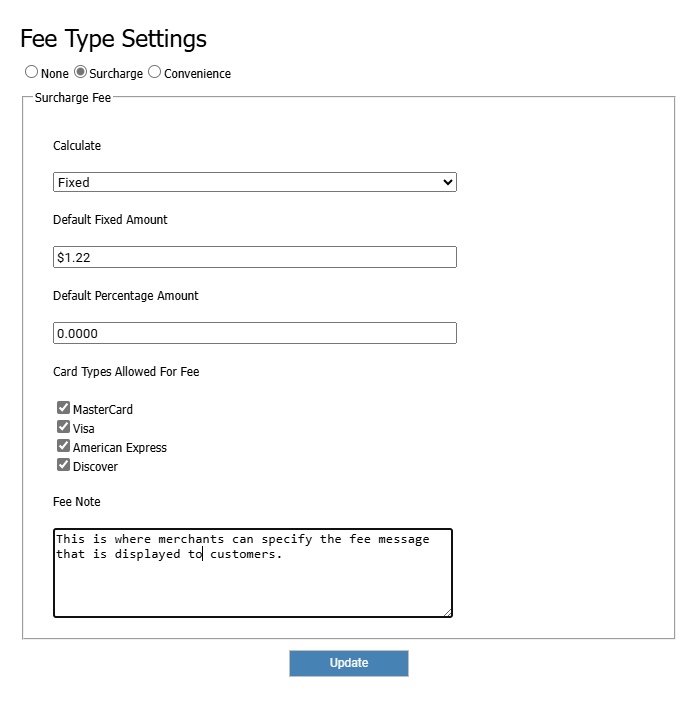
Navigate to the Manage Fees page in the client admin portal. You will be prompted to acknowledge that you understand the credit card surcharge rules.
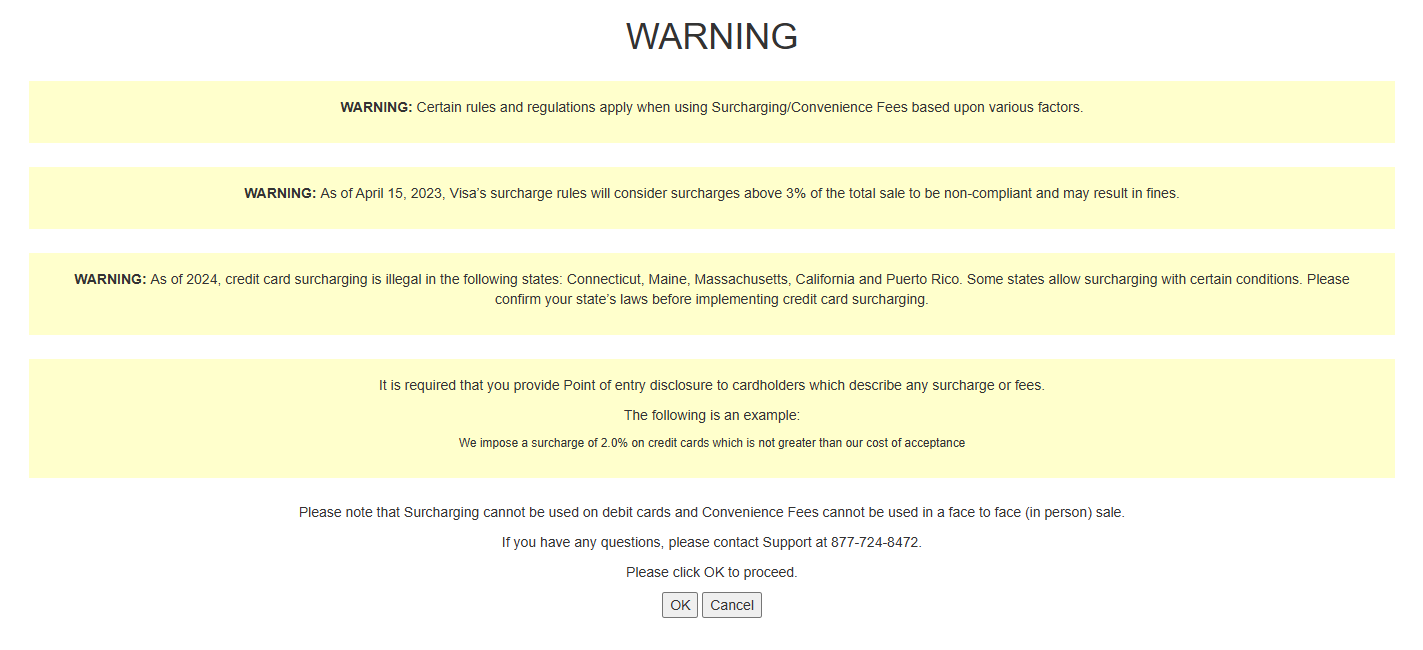
Fees are calculated by either a percentage of the charge amount or as a flat rate per transaction. Each merchant can also specify the message that appears to notify customers about the fees.
¶ Using Fees with the Virtual Terminal
Surcharge and convenience fees are automatically calculated during a credit card sale, both manual entry and EMV, as well as when charging an existing card on file. Users have the option to waive the fee on any transaction if required.
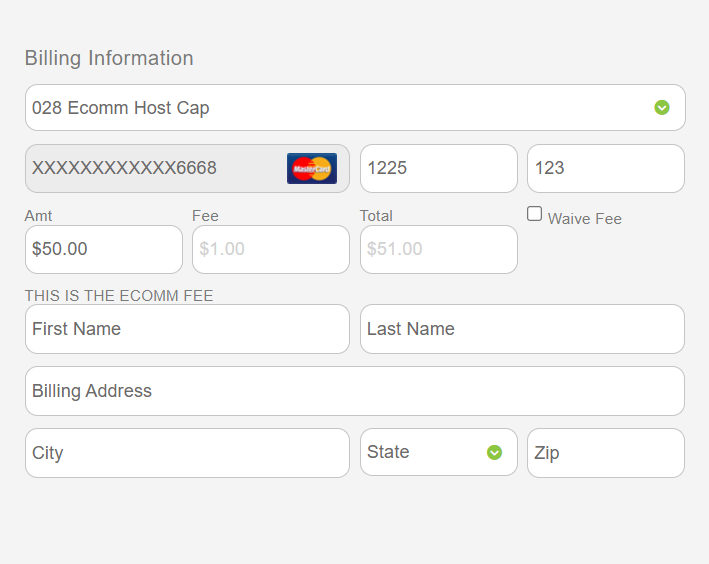
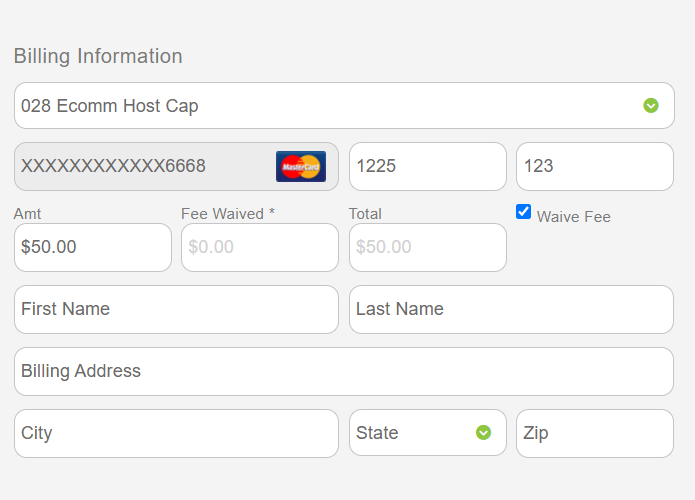
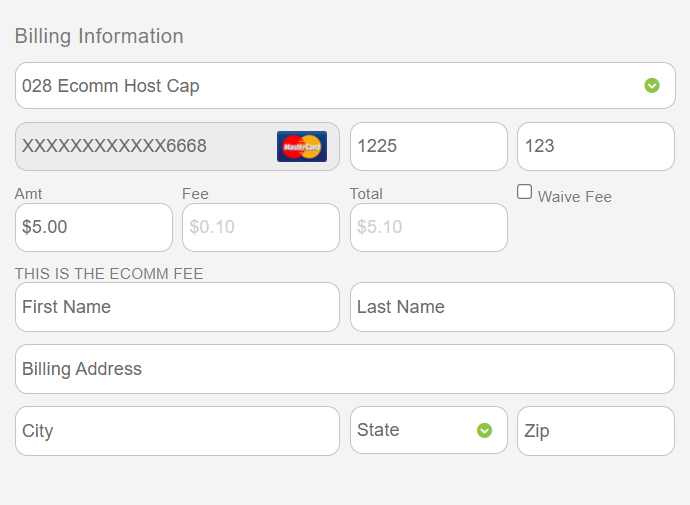
The Virtual Terminal system will also ensure that fee amounts do not go over the allowed 3% limit imposed on fees. In the sample below, the fee has been adjusted based on the dollar amount being charged. This percentage cap is present in all of Easy Pay’s processing systems, including the Virtual Terminal, PayForm widget, and REST API calls.
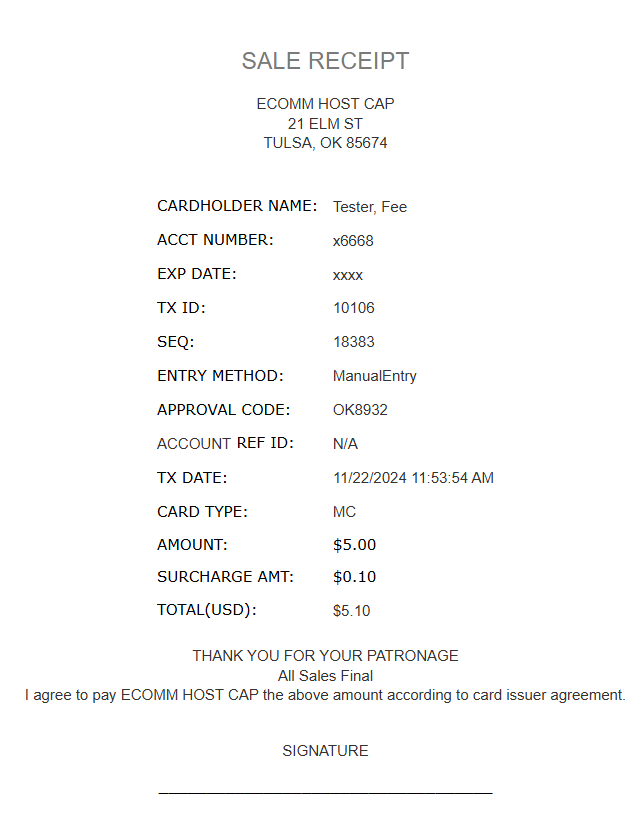
The customer’s receipt details the charge amounts including the base amount, fee, and total amount charged. Fee processing rules require that the fee amount is not hidden and is visible to the customer.
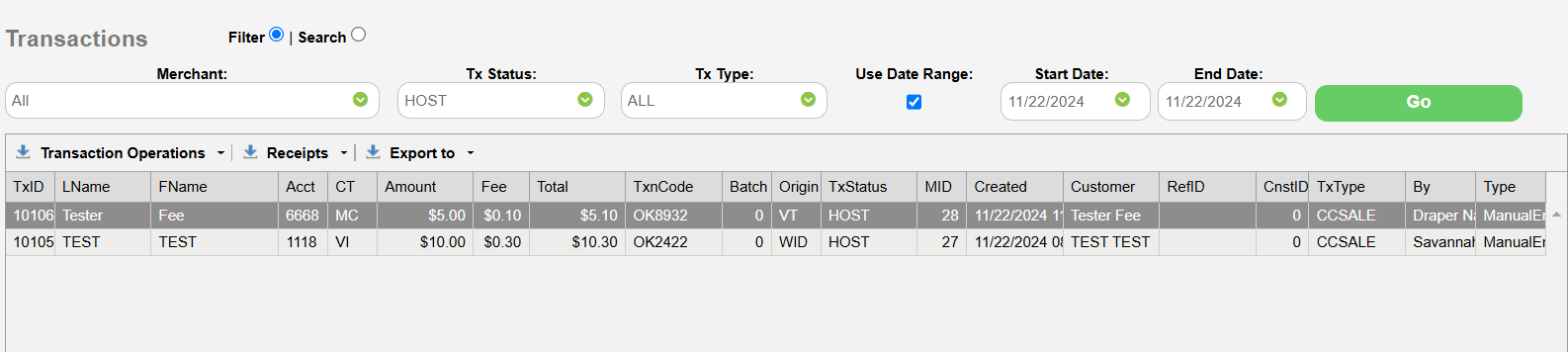
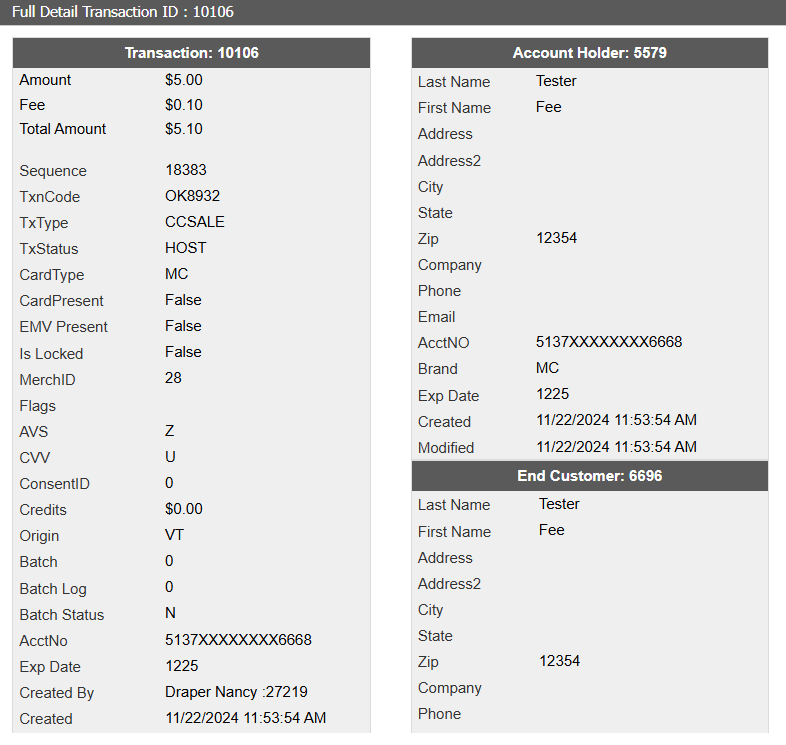
In addition to the receipts, the VT reporting and detail windows also show the fee structure as part of the total amount.
¶ Fee Processing is Integrated with the REST API
There are multiple API calls available that support and simplify fee processing, such as:
- Card sale operations where card data is manually entered and transmitted.
- Card sale operations for card present transactions conducted using a chip reader.
- Fee calculation calls to aid charging cards stored on file.
- Charging stored cards with options and fees.
- Transaction queries that show the base amount, fee, and total amount charged.
- Generating receipts that show the fee and amounts charged.
¶ Fees are Built into the PayForm Widget
The PayForm widget is a customer facing web form for securely collecting payments. The fee amount and notification message are clearly visible for customers to see.
The widget will automatically adjust the fee amount to ensure that the 3% limit is enforced. The fee is recalculated based on the amount being charged. Fees are waived when they are not applicable, such as charging a debit card.